 Family Filter TV
Get set up
Someone sent you Family Filter TV. The quick start below takes about five minutes. Everything else is further down the page, for when you need it.
Quick start: follow along on your Android TV
Use this to mute swearing while you watch Netflix and other apps on your Android TV or Google TV. You need the TV and an Android phone. Family Filter TV is not affiliated with Netflix.
-
Install Family Filter TV on your TV from Google Play. If the Play Store on your TV does not show it, install it directly. Step by step: Android TV install guide.
-
Install it on your Android phone the same way (phone install guide), open it, and sign in or create your account.
-
Link the TV. Open Family Filter TV on the TV to see a short code. On the phone, tap Account, then Link a device, and type the code.
-
Let the TV see what is playing. On the TV, open Family Filter TV and choose Follow along, then Open settings, and switch Family Filter TV on. You only do this once.
-
Start the film or episode on the TV. On the phone, tap Home, search for the same title, pick it, and tap Start following. If the phone asks to use the microphone, tap Allow.
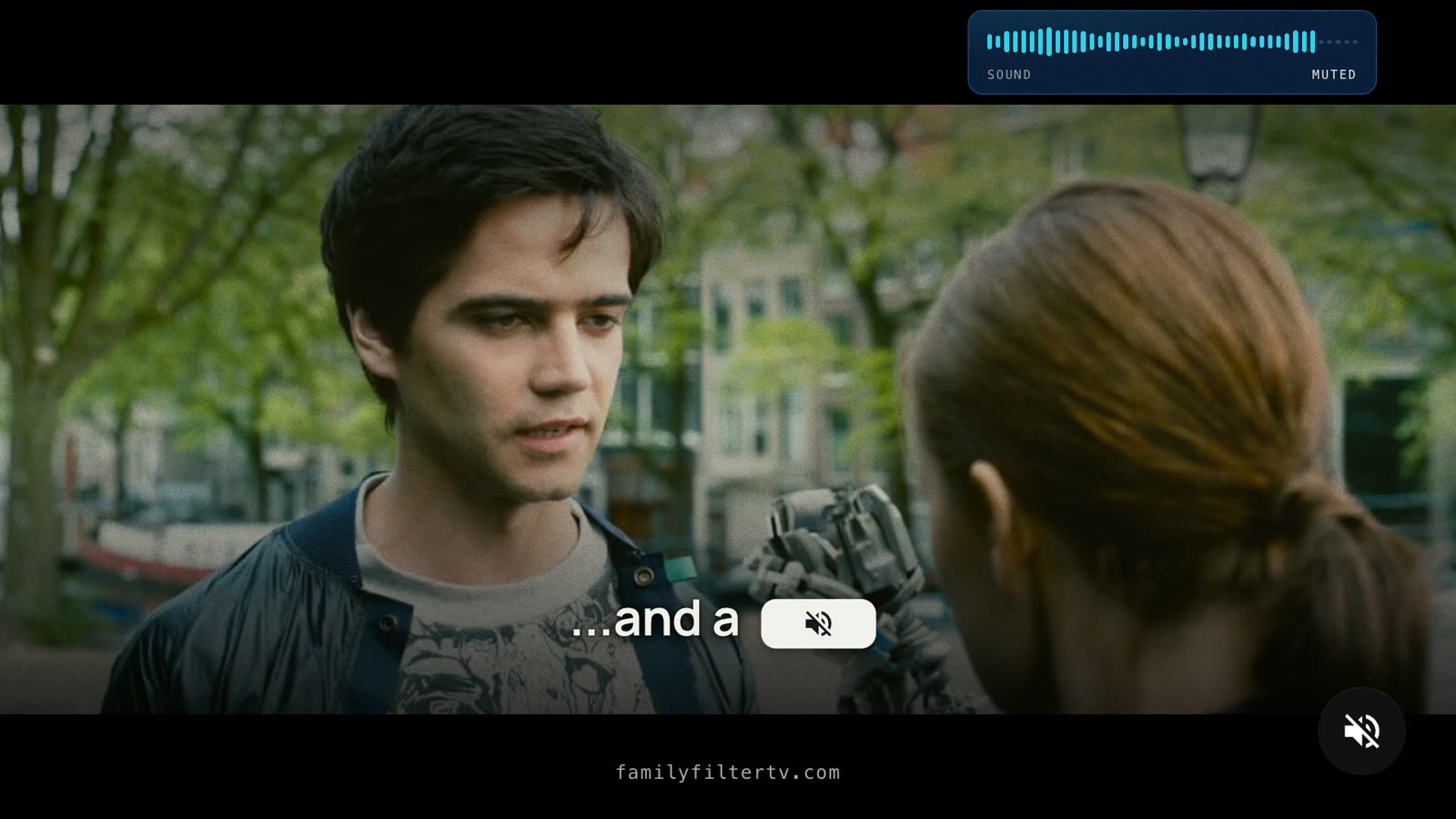
Done. The TV now mutes the swearing it finds in the subtitles. Muting is best effort, so a line may slip through. If the phone says no subtitles were found for the title, nothing is muted. Not working, or out of step? See the sections below.
If it is not in sync
Does the phone need to listen?
Only sometimes. With Netflix on your Android TV, the TV reads where you are in the film by itself, so no listening is needed. In some other apps, on live channels, and on a Windows computer, the TV or computer cannot tell where you are. Then the phone finds the place by listening to the show.
How does listening work?
Once you have allowed the microphone, the phone starts listening by itself when you follow a title. It usually lines up within a few seconds of clear talking. It keeps listening while the Follow screen is open, so it can correct itself after a pause or a skip. Tap Stop if you want it to stop.
The phone says it can hardly hear the show
Turn the volume up. Or play the sound through speakers instead of headphones, so the phone can hear it.
It will not line up during a song or a quiet scene
The phone needs people talking. It cannot line up during songs or scenes with no talking. Give it a moment once the talking starts again.
I would rather type the time
Tap Type the time and type the time the player shows. Just type the digits: 10750 becomes 1:07:50, and 750 becomes 7:50.
I locked my phone
The phone does not listen while it is locked or the app is in the background. The TV keeps time by itself. If you pause or skip, open the app again so the phone can correct it.
Nothing is being muted
Family Filter TV only mutes when it finds the right subtitles, and it tells you when it cannot. Check step 4 of the quick start: on the TV, under Follow along, notification access must say Granted. That is how the TV sees what is playing. Still stuck? Write to us from the support page.
What follow mode can and cannot do
- It works on an Android TV or Google TV, with Family Filter TV on the TV and on an Android phone.
- It does not work with the built-in apps of Samsung, LG and other non-Android TVs. Will it work on my TV? has the brand-by-brand answer.
- English titles only for now.
- It only mutes when the right subtitles are found, and it tells you when they are not.
- Muting is best effort. Family Filter TV cannot stop the other app, so a line may slip through.
- It mutes speech only. It does not filter violence or nudity.
Watching on a Windows computer
Family Filter TV for Windows is an early beta. It follows what the computer is playing and mutes the whole computer's sound over flagged words. A computer cannot tell where it is in a film, so the phone listens to find the place, as described above.
- Download the installer from the Windows section of the download page and run it.
- Windows will warn you because the app is not signed yet. Choose More info, then Run anyway.
- The app shows a short code. On the phone, tap Account, then Link a device, and type the code.
- Play something on the computer. On the phone, set Follow on to your computer, pick the title, and tap Start following.
The Windows app also listens to the computer's own sound to catch spoken swearing the subtitles miss. That sound stays on the computer. The known limits are on the download page.
TV without Google Play (direct install)
A few TV boxes do not have Google Play. They can install the same app directly from a file. The download page has the file and the steps, using the free Downloader app. After that, carry on from step 3 of the quick start.
Privacy and the microphone
The phone turns sound into words on the phone itself and compares them there with the subtitles. No audio and no words are stored or sent anywhere. It only listens while the Follow screen is open and something is playing, never in the background. You can tap Stop, or remove the microphone permission in Android's settings. Follow mode with a TV app that reports its own position still works without it. The full wording is in the privacy policy.
Using Stremio instead
Family Filter TV also works with Stremio, which you may already use to find and play films and series. Two apps go on the television: Stremio, and Family Filter TV, which mutes the swearing in whatever Stremio plays. Family Filter TV is a separate, independent app. It is not made by, affiliated with, or endorsed by Stremio.
-
1. Install Stremio
Install Stremio from Google Play on the TV, and on your phone too if you'd like, then sign in or create a Stremio account. We are not affiliated with Stremio — it's simply the player Family Filter TV works alongside.
You'll know it worked when Stremio opens on the TV and you're signed in.
-
2. Install Family Filter TV
Install Family Filter TV from Google Play on the same TV, and on the parent's phone as well — that phone is where the filter gets set.
You'll know it worked when Family Filter TV appears on both the TV and the phone's app list.
-
3. Set up on the phone
Open Family Filter TV on the phone, create an account, and start the 14-day free trial. Google will ask for a card at this point — that's Google Play's own trial flow, and nothing is charged until the trial ends. Pick a filter strength: off, mild, family, or strict. Then tap Account, then Link a device, and type in the code your TV is showing.
You'll know it worked when the phone shows the TV as linked.
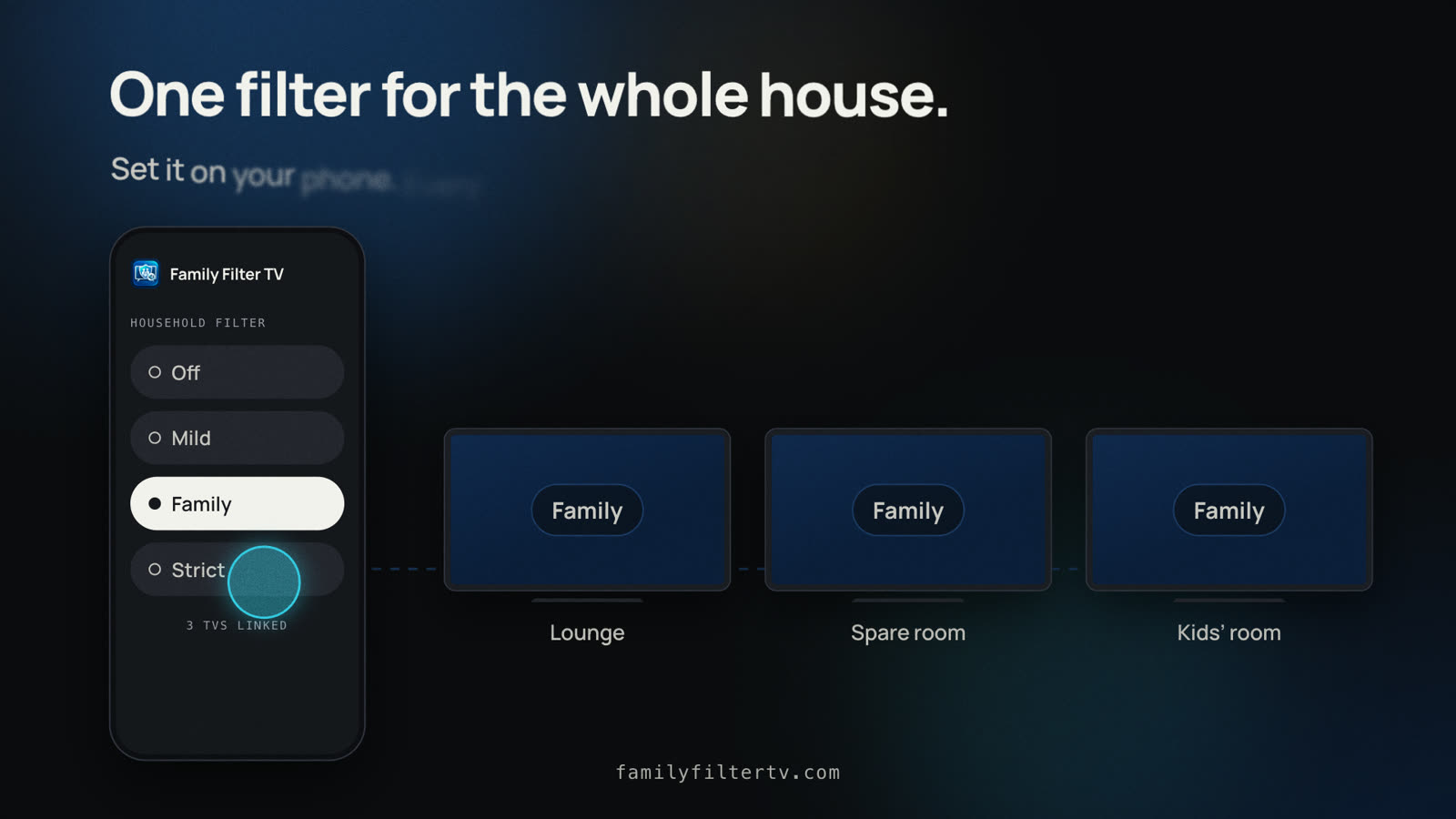
The filter is set once on the phone and every linked TV follows it. -
4. Set Family Filter TV as the player
In Stremio on the TV, start any title. Open the Player menu on the control bar (the picture-in-frame icon), choose External, and pick Family Filter TV from the list. Tap Always so Stremio remembers the choice.
You'll know it worked when Family Filter TV opens automatically for playback.
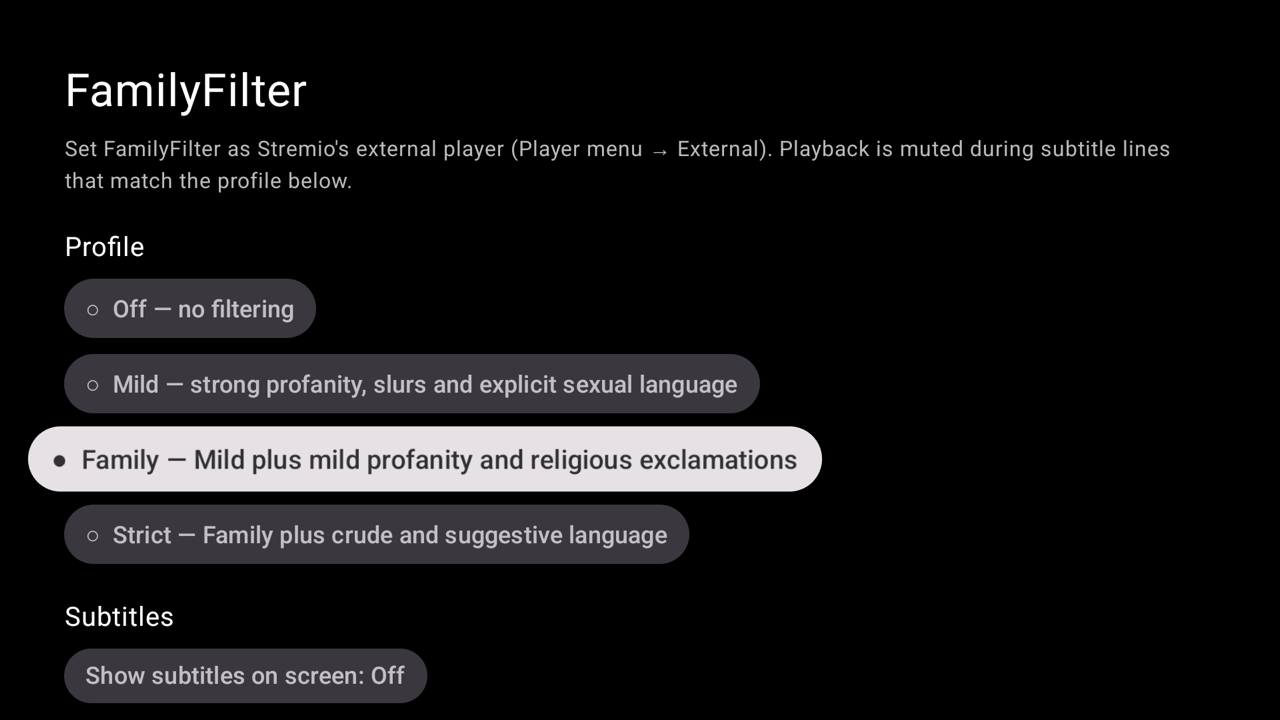
The filter screen on the TV, with the Family profile selected. -
5. Add-ons — your choice, your responsibility
Stremio itself plays nothing until add-ons are added. The official catalogue is inside Stremio, under Add-ons → Community or Official. Which add-ons someone installs, and where they point, is entirely their own choice — we don't recommend, endorse, or supply any particular one.
You'll know it worked when a title actually starts playing from Stremio.
-
6. Turn on subtitles
Filtering requires supported subtitles to be available for the title. Make sure subtitles are available before you start watching.
Family Filter TV tells you on screen if filtering is unavailable for that title.
Want to know how much swearing a title has before you press play? Add the free Language Ratings add-on to Stremio on your phone — it shows up here on the TV once Stremio syncs.
-
7. What to expect
When filtering is available, unwanted language is automatically muted while the picture keeps playing. Violence and nudity are not currently filtered. Current filtering is for supported Stremio playback.
Following along in other apps works differently. See the quick start and its limits.
You'll know it worked when a swear word drops out and the picture never stutters, cuts, or skips.
-
8. Launch offer, and inviting others
From 1 October 2026 there's 50% off the first year, for the first 200 subscribers in South Africa and the first 200 everywhere else, running until 31 December 2026. Family Filter TV also has an Invite a friend screen in the app: 10 weeks free for every friend who subscribes, so five friends covers a full year.
You'll know it worked when the app's pricing screen shows the discount, or your invite history shows a friend who's joined.
Still stuck?
The support page has setup steps, known limits, and a real address to write to if something isn't behaving.
Family Filter TV is an independent app. It is not affiliated with, endorsed by, or connected to Stremio, Google, or any streaming service.